Workforce Order and Dispatcher
WorkforceOrder is the operational entry point into WFM. It captures what work is needed, where and when it should happen, and which service context it belongs to.
1. Workforce Order Meaning
Workforce order represents a request to realize field work, usually created by API from source applications.
Typical source domains:
- incident handling,
- provisioning and activation,
- planned maintenance,
- customer-requested changes.
2. Order Data Scope
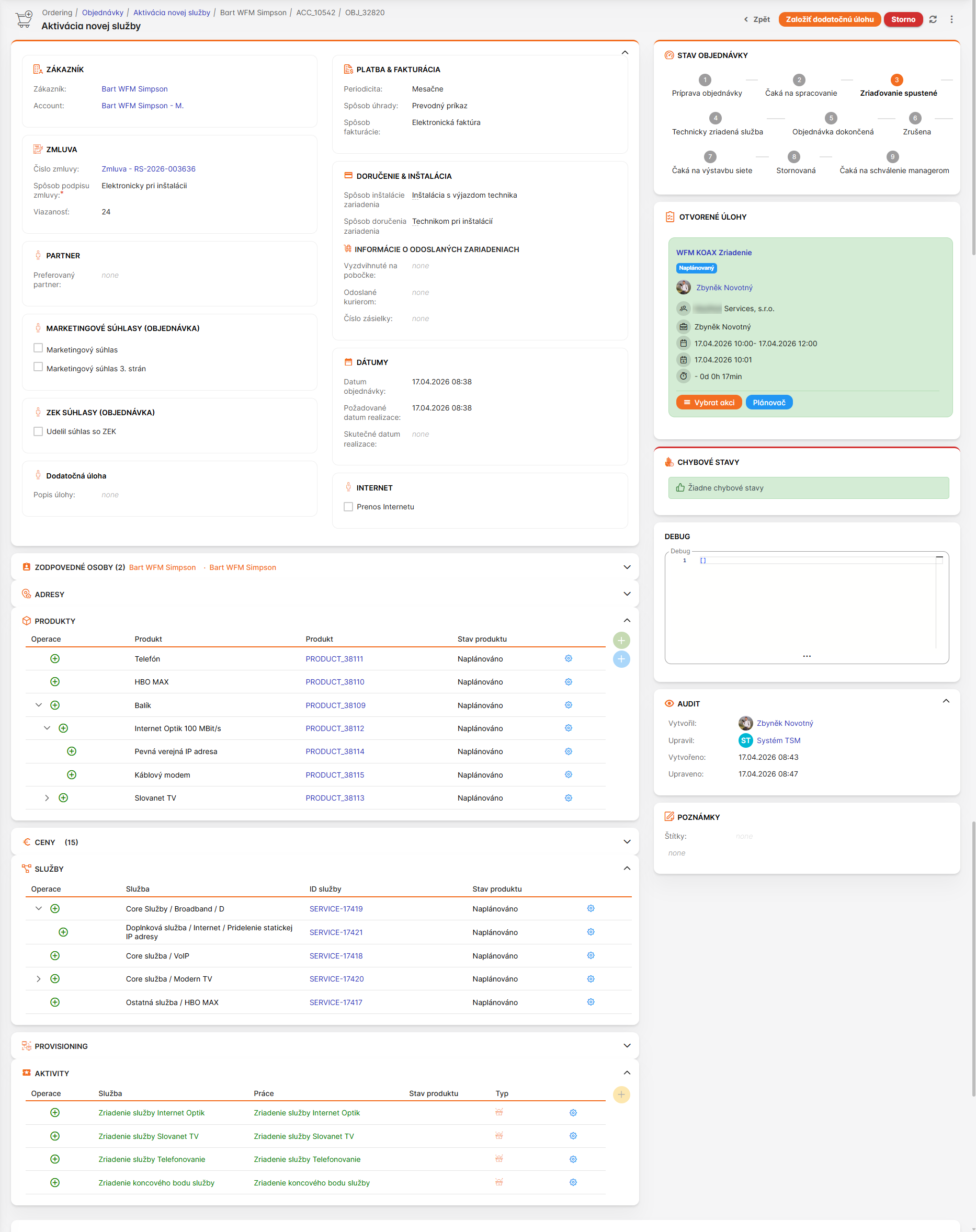
Typical order payload contains:
| Field Group | Typical Content | Purpose |
|---|---|---|
| Work definition | work request type(s), line items | Defines what should be done |
| Service reference | service ID/context | Links work to affected service |
| Location | address/place + GPS | Enables routing and zone logic |
| Time requirements | due date, optional not-before date | Drives planning windows |
| Technical parameters | technology/context data | Improves task feasibility |
| Optional resource hints | preferred resource | Supports controlled manual targeting |
Order detail example:
3. Inventory Linkage
Workforce order can reference service and product inventory for operational context.
Patterns:
- reference existing service instance,
- create lightweight service record for WFM support when external inventory is authoritative,
- expose service details in order UI for faster execution decisions.
3.1 Inventory context examples
Product and service list in workforce order inventory context:
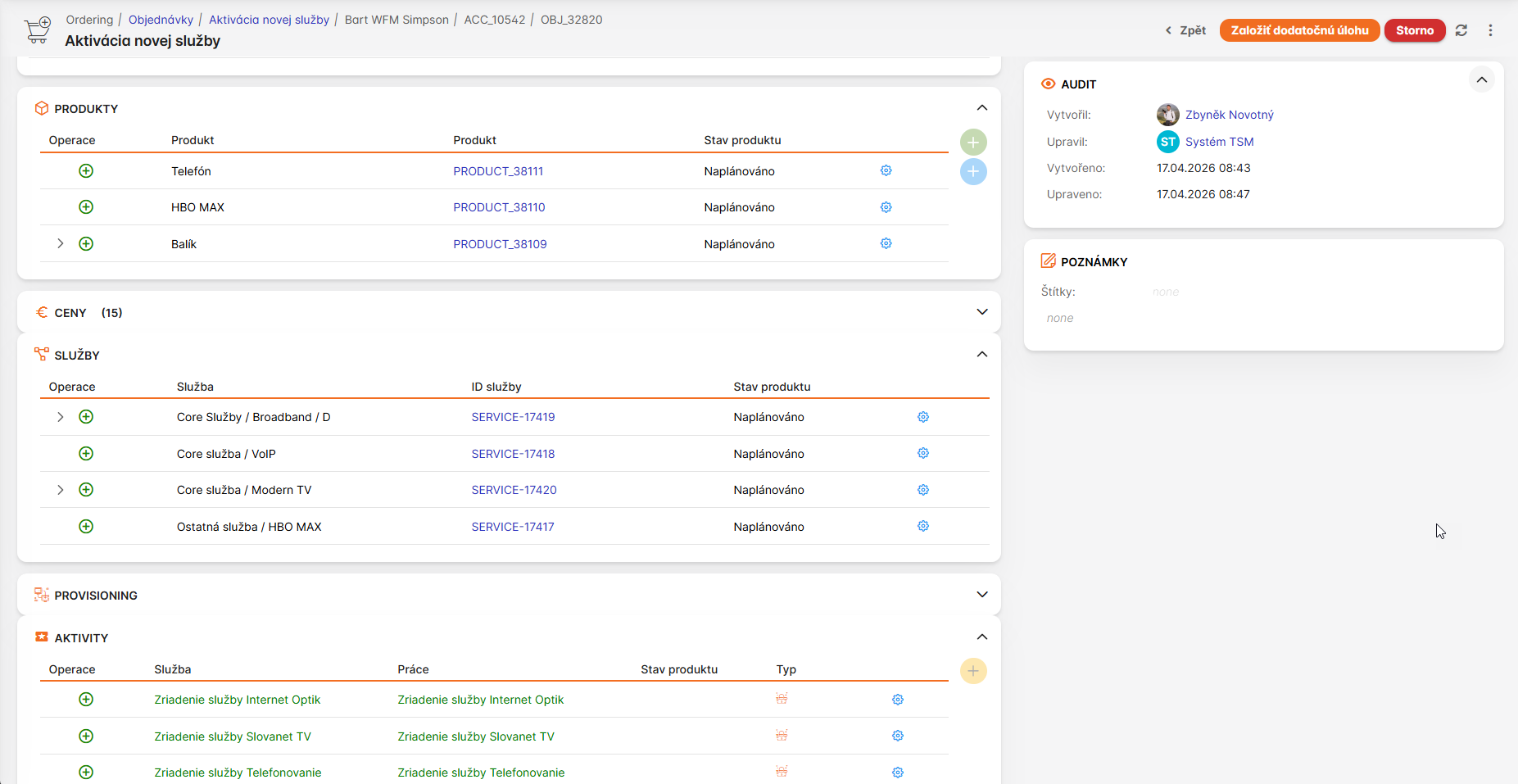
This view shows a list of products and services linked to the workforce order, allowing selection or reference to existing inventory items. Options include searching, filtering by type or status, adding new lightweight records, and viewing details for each item to support operational decisions.
Product inventory context detail in workforce order:
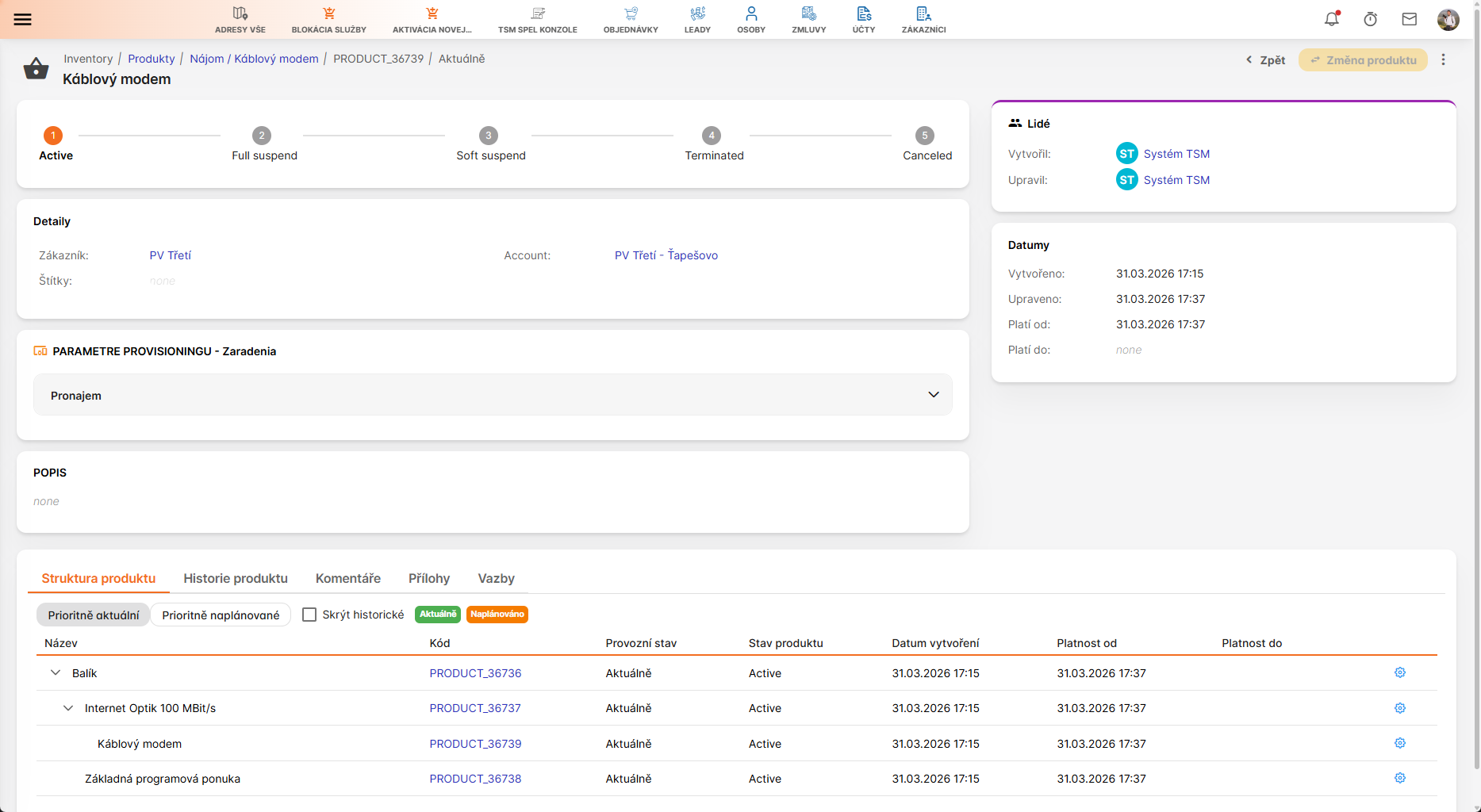
Detailed view of a product from inventory, including attributes like product ID, description, specifications, stock levels, and associated services. Possible actions involve editing details, checking availability, linking to work requests, or updating status for planning purposes. Features allow viewing history, attaching documents, setting dependencies, and integrating with process tasks for efficient field execution.
Service inventory context detail in workforce order:
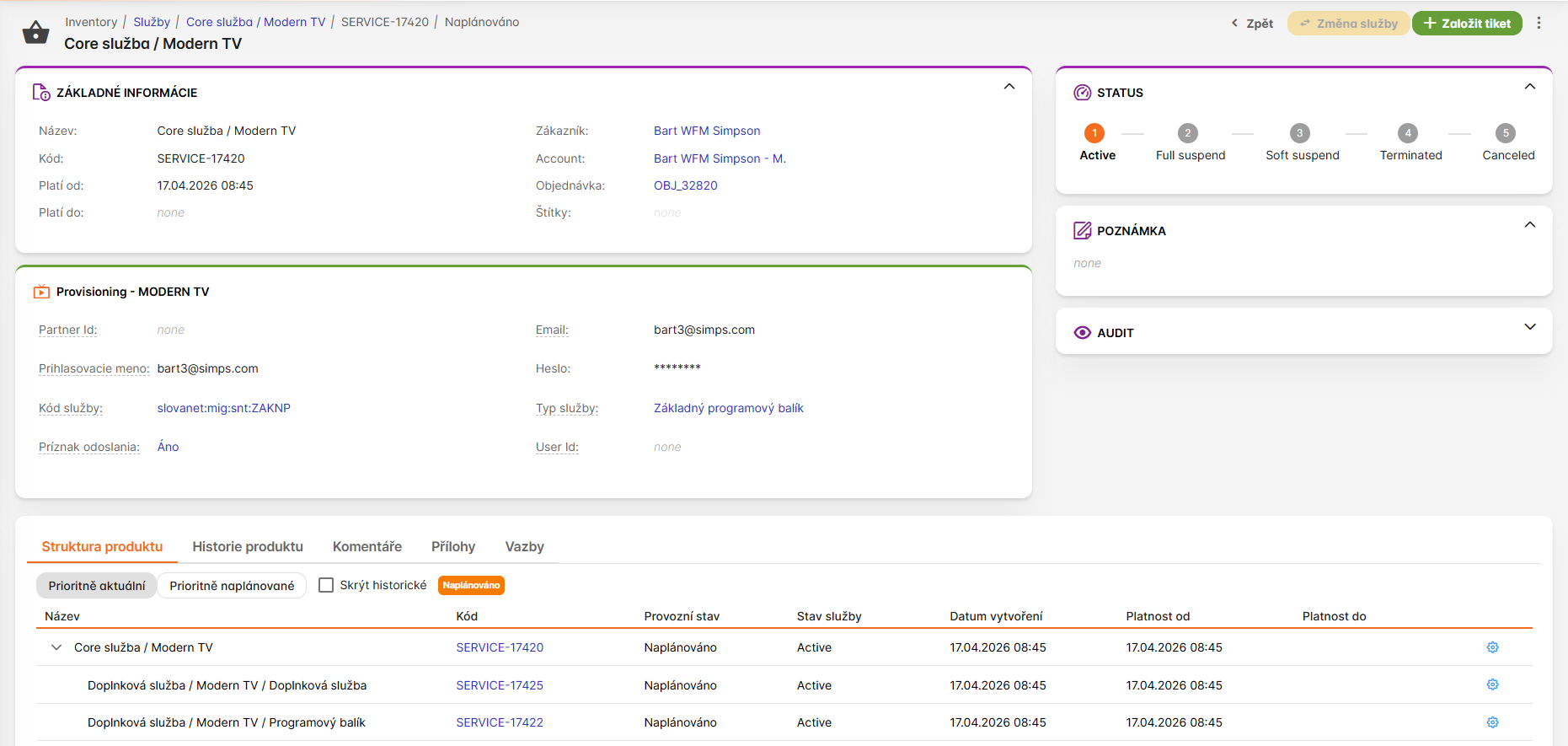
Here, service details are displayed, such as service ID, type, customer information, status, and related products or components. Features allow viewing history, attaching documents, setting dependencies, and integrating with process tasks for efficient field execution.
4. Order Lines (Work Requests)
One workforce order can contain multiple order lines.
Each order line defines one work request on the service and can include:
- WFM-specific planning data,
- work-specific technical attributes,
- service-related data required by process/tasks.
Order line list and detail view:
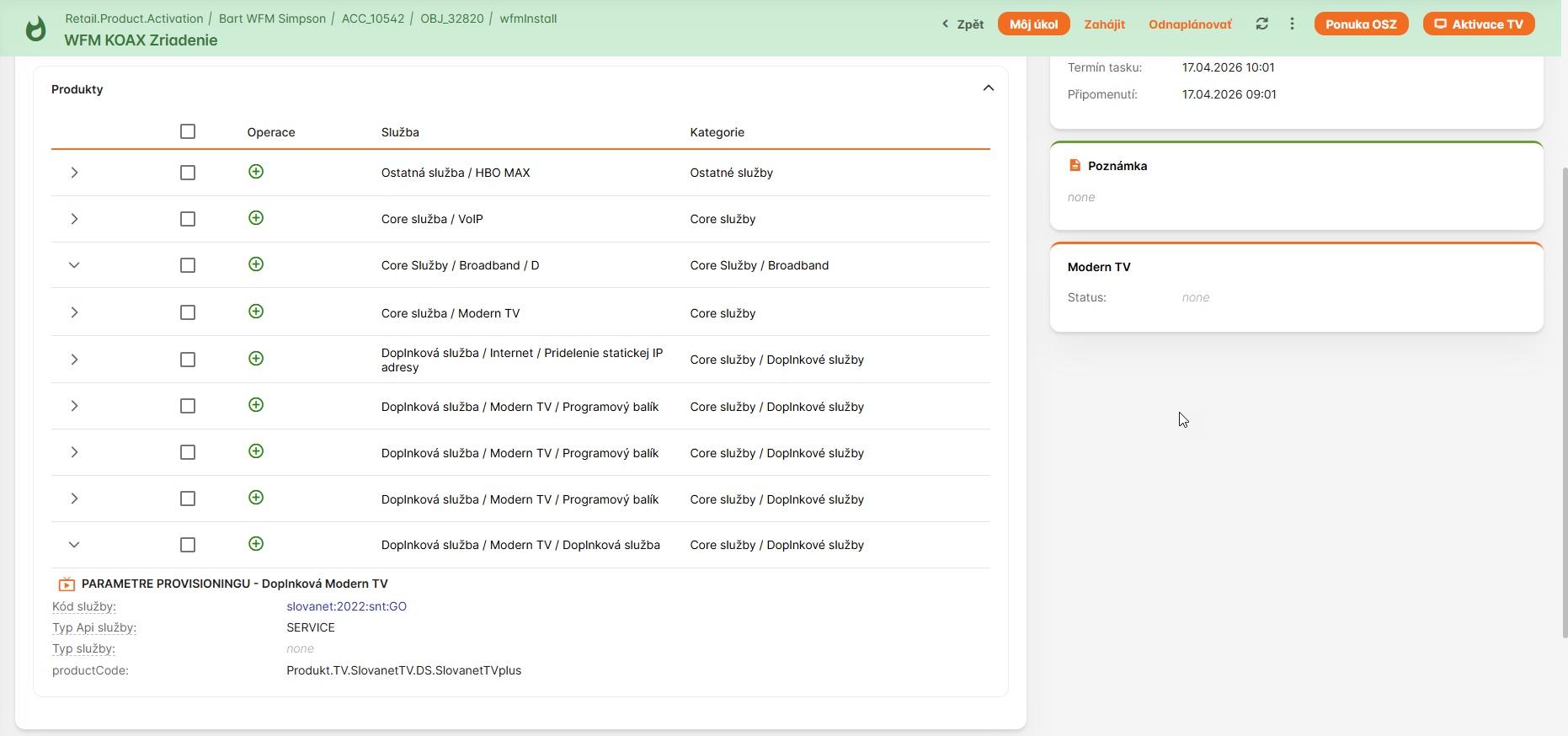
This view displays a list of order lines within a workforce order, showing key details such as work request type, status, priority, and due dates. Each line can be expanded for more details, including planning data, technical attributes, and options to edit or add new lines. Possible actions include sorting, filtering by status or type, and linking to related service inventory.
Detailed view of an order line:
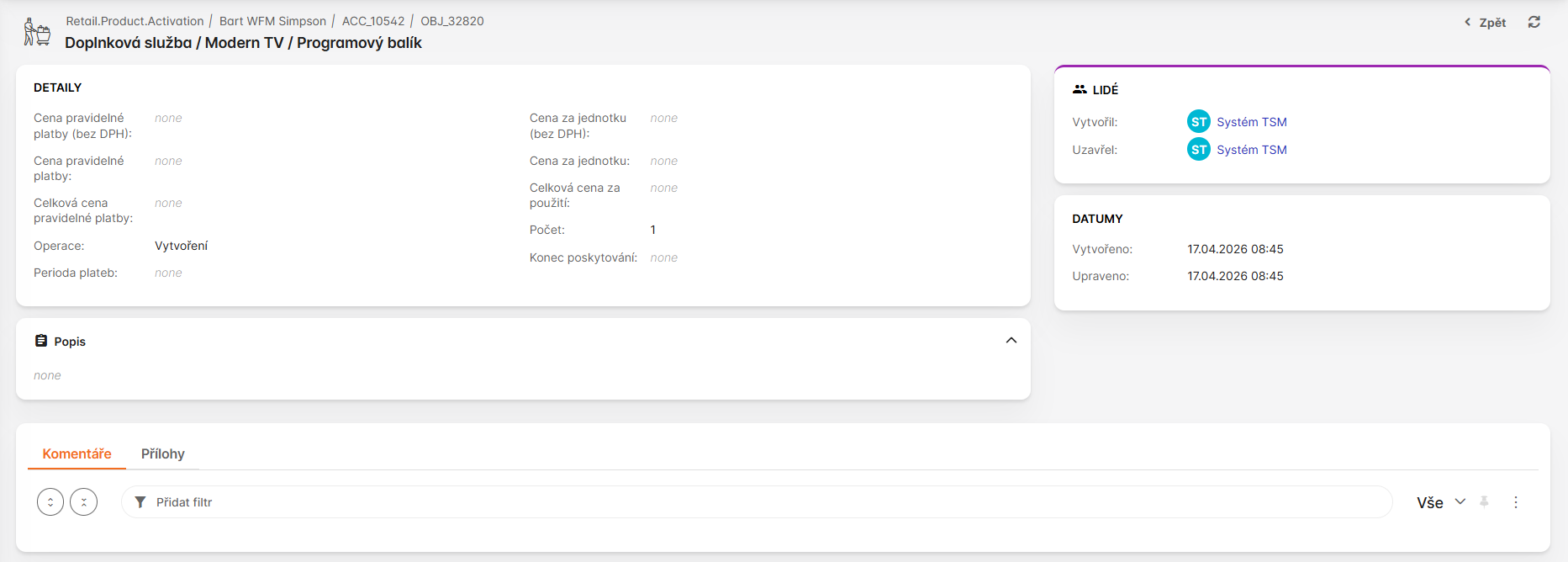
Here, a single order line is shown in detail, including fields for work request type selection, planning parameters like duration and skills required, technical attributes specific to the work, and service-related data. Options allow editing values, attaching documents, setting dependencies, and configuring notifications or escalations for the line.
5. Process Generation from Order
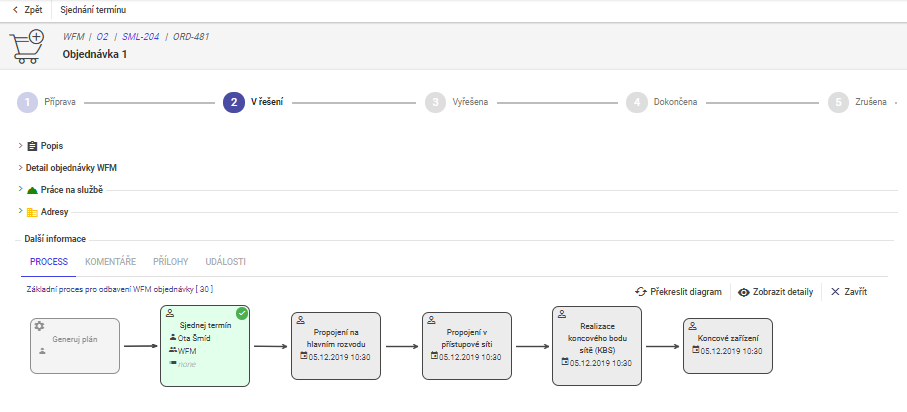
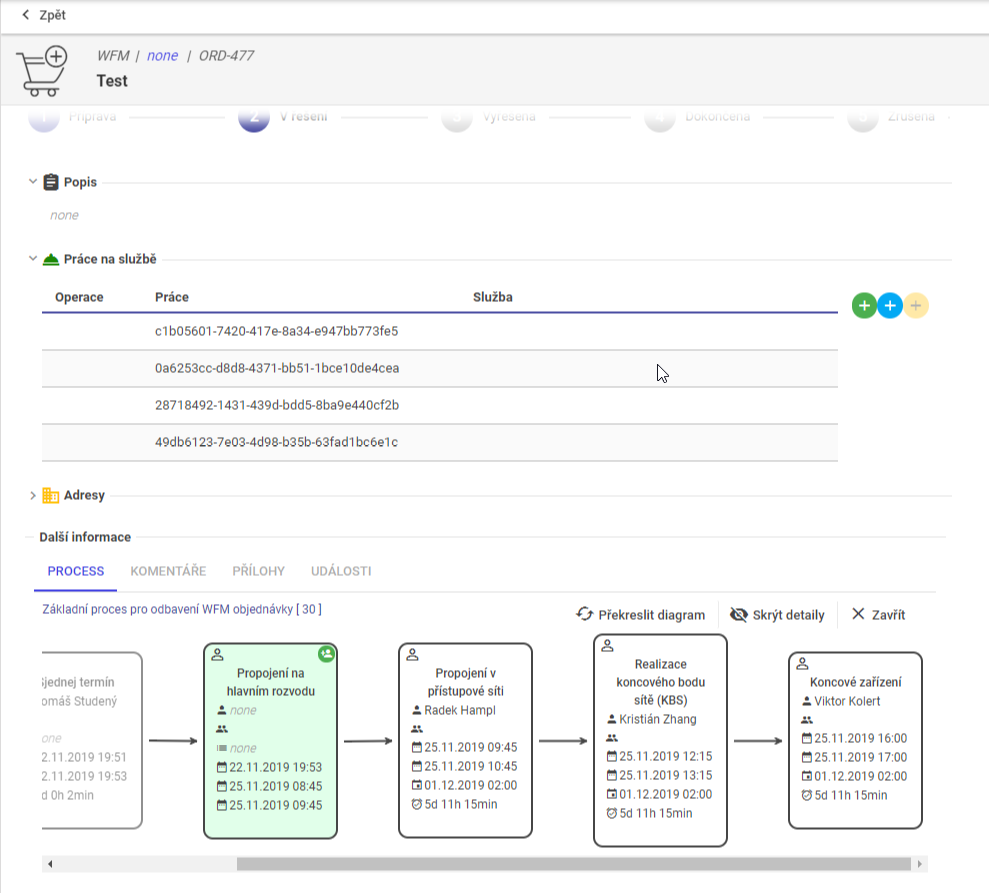
After order creation, tSM selects one or more process definitions and generates executable tasks.
Task generation process example:
Related orchestration view:
5.1 Transformation Behaviors
Depending on configuration, system can:
- expand lines to multiple tasks,
- merge compatible requests into one package,
- create grouped tasks for operational efficiency,
- stop for appointment negotiation when customer slot is mandatory.
6. Dispatcher Operating Model
Dispatcher supervises daily execution and resolves collisions between plan and reality.
Main capabilities:
- monitor plans on Gantt and map,
- inspect technician routes and current locations,
- view unscheduled tasks and planned outages,
- apply controlled manual interventions,
- run dry-run simulations before commit.
6.1 Dispatcher UI
Dispatcher Gantt overview for weekly planning:
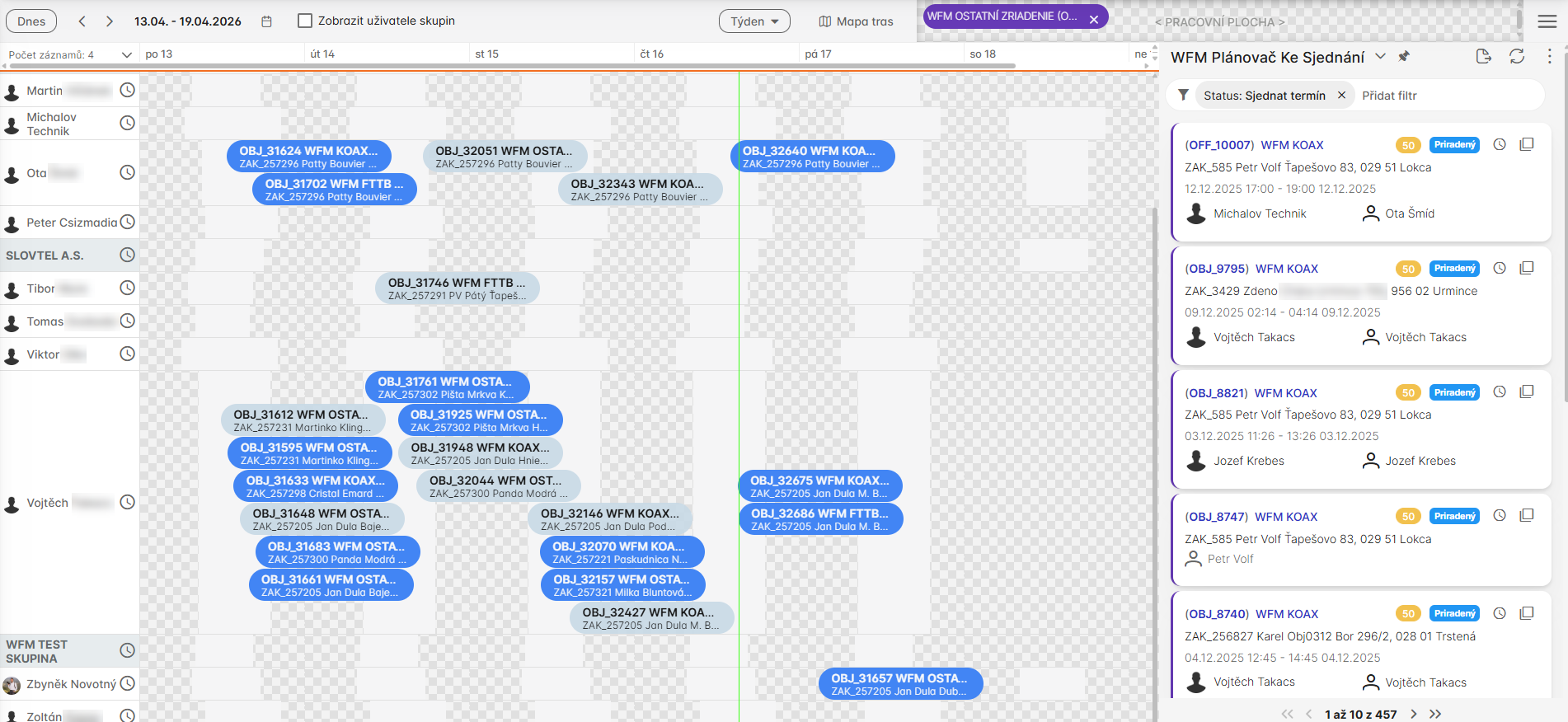
This Gantt chart provides a weekly overview of scheduled tasks, showing timelines for resources, task assignments, durations, and dependencies. Features include zooming in/out, filtering by resource or task type, highlighting overdue items, and options for manual adjustments like dragging tasks to new times or resources.
Work groups management:
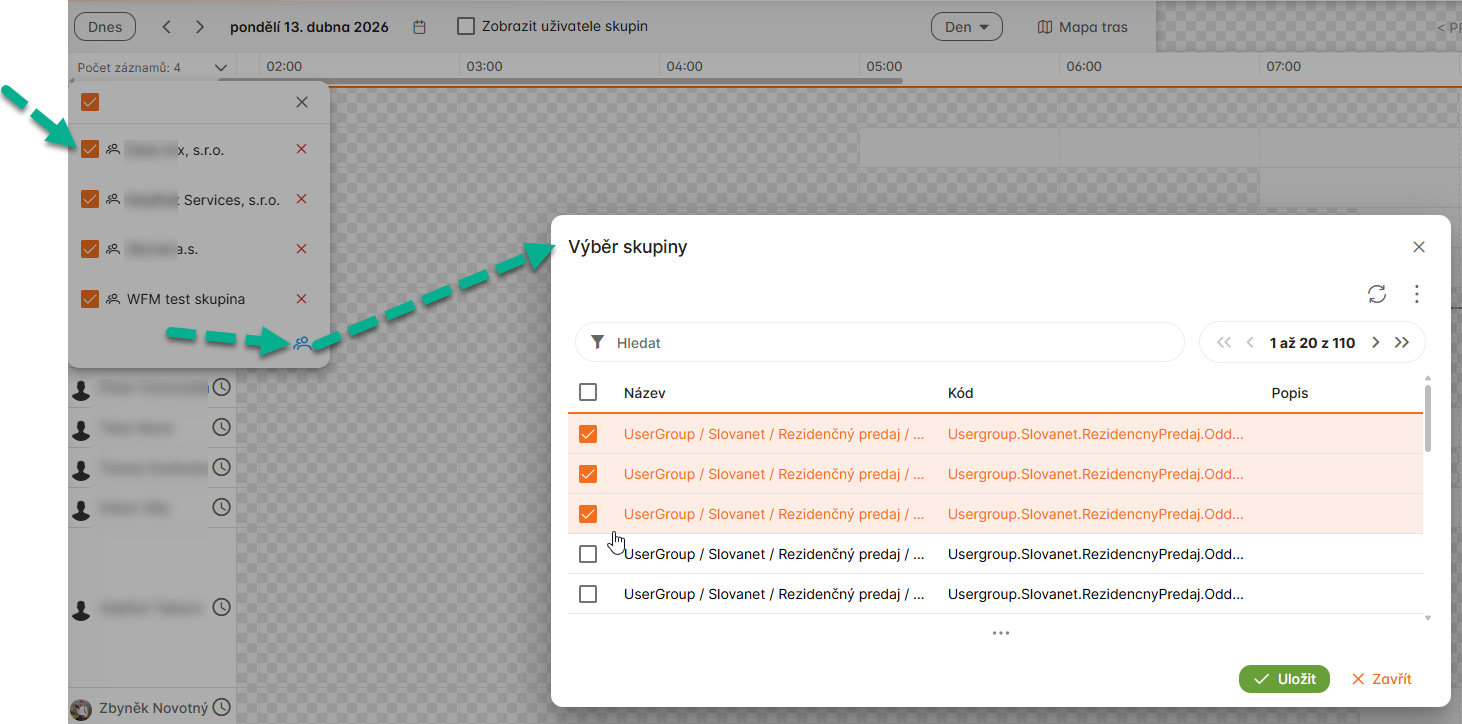
This view allows managing work groups. Options include filtering groups, viewing group performance metrics, and integrating with scheduling for team-based task assignments.
Task selection in dispatch view:
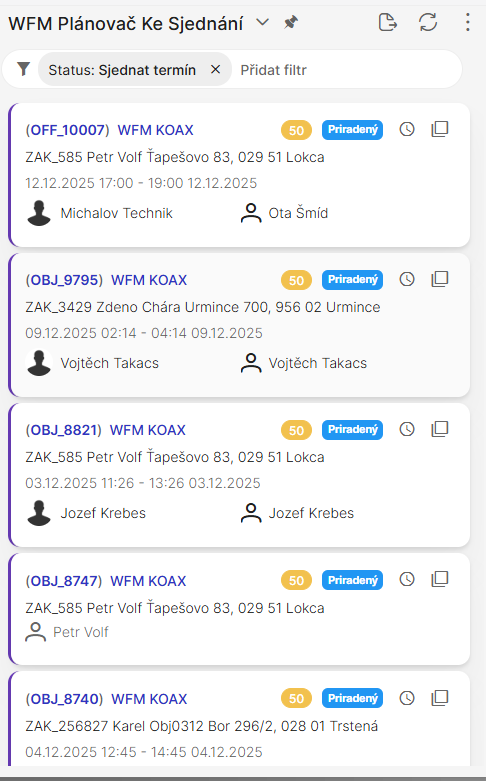
Task selection in the dispatch workspace, where the dispatcher reviews key task details, status, and availability before starting the appointment negotiation.
Drag and drop task adjustment:
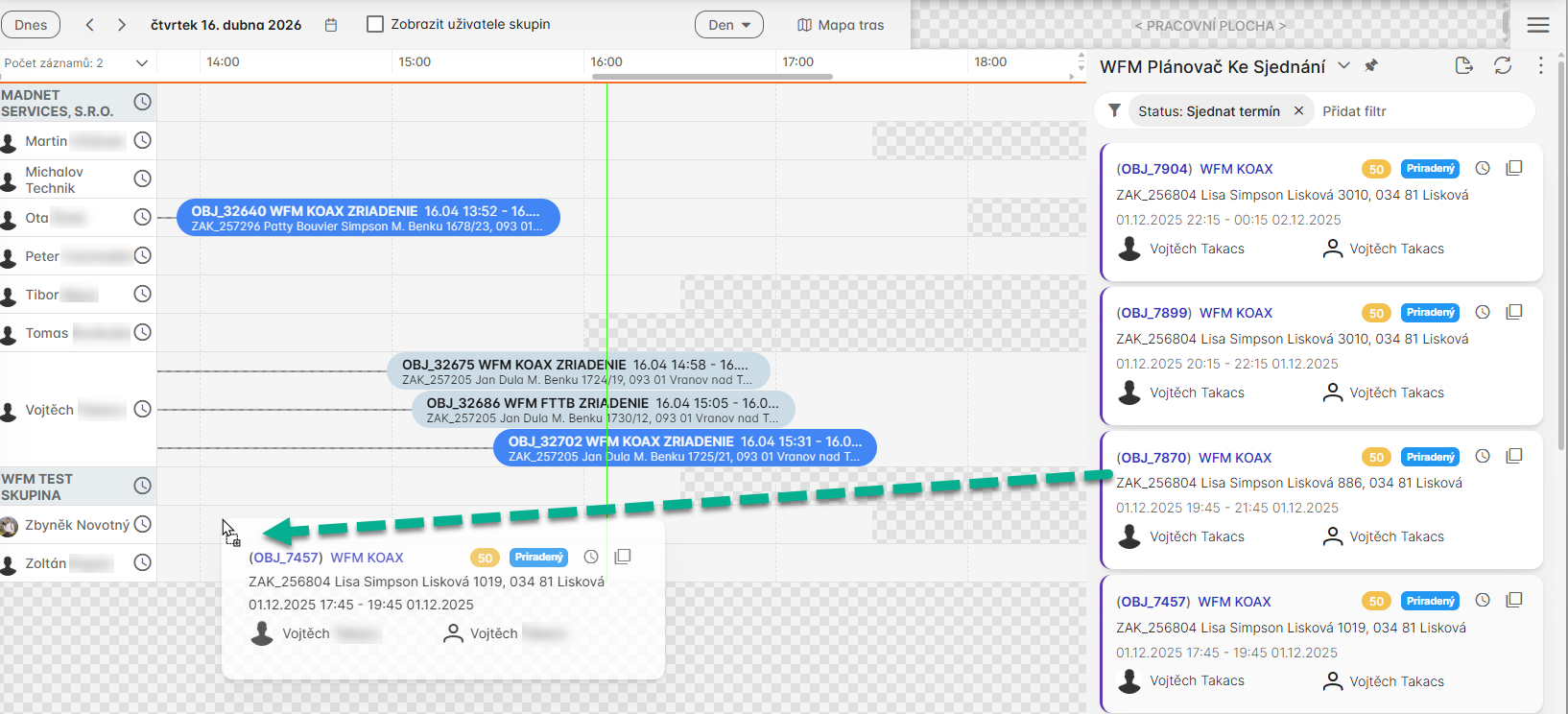
Drag-and-drop task adjustment, allowing the dispatcher to move the task to another time slot or resource directly within the dispatch interface for fast schedule refinement.
Task detail in Gantt context:
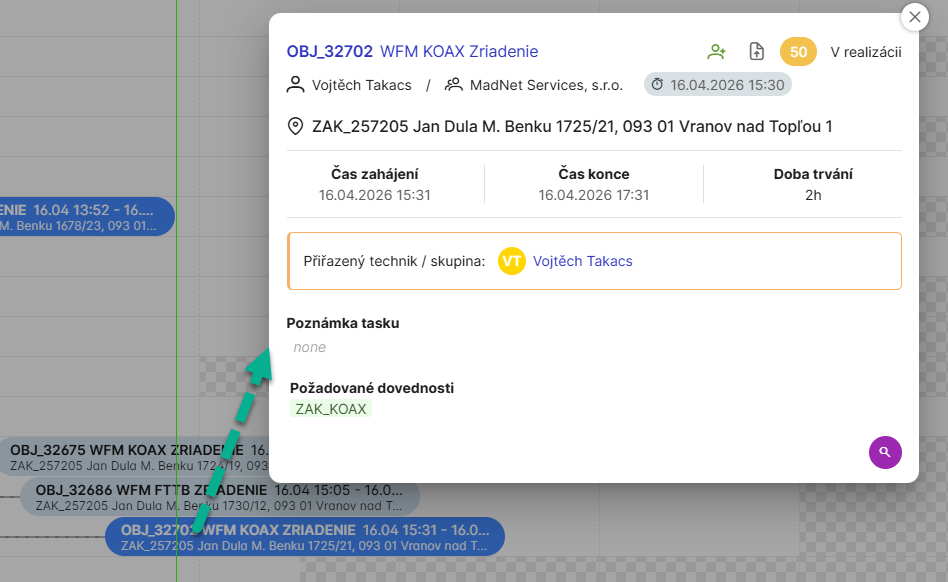
Task details in a Gantt-style timeline with the proposed slot visualized alongside task dependencies and the resource schedule. The lower part of task detail is customizable see Task definition - detail.
6.1.1 Technician attendance
Technician attendance overview:
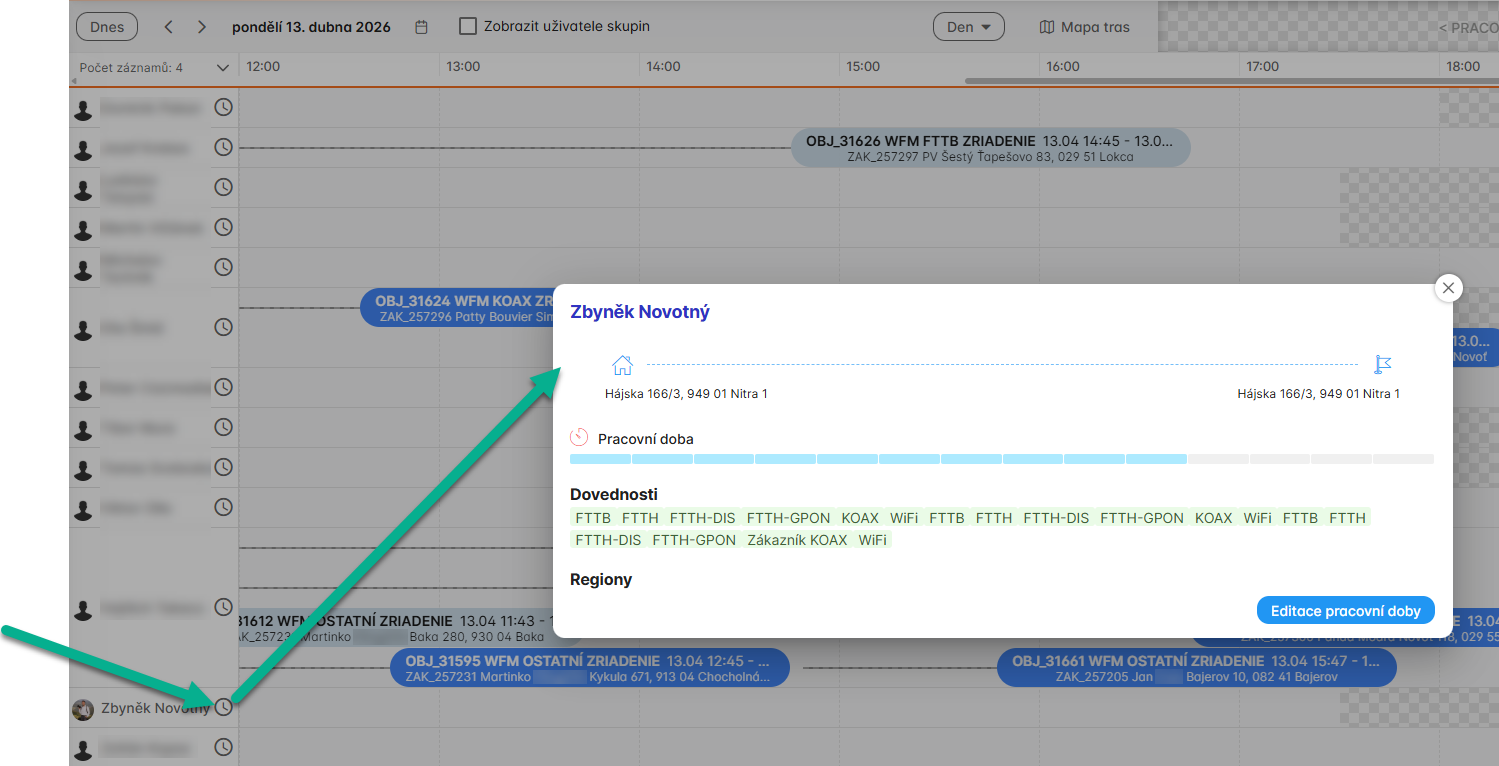
Overview of technician attendance, showing check-in/check-out times, breaks, absences, and availability status.
Technician attendance:
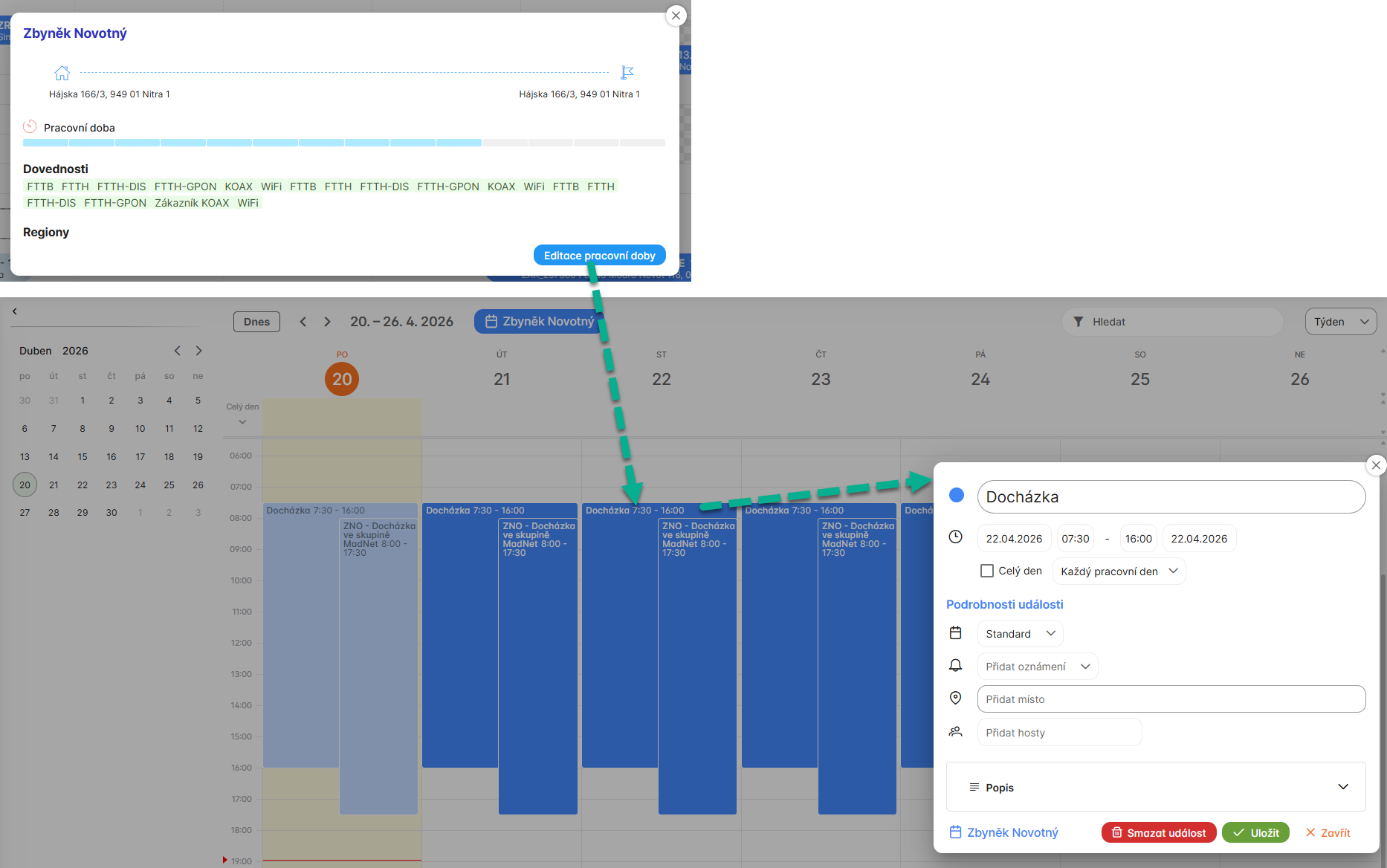
Dispatcher can edit the technician's attendance.
6.1.2 Dispatcher views
Dispatcher views selection:
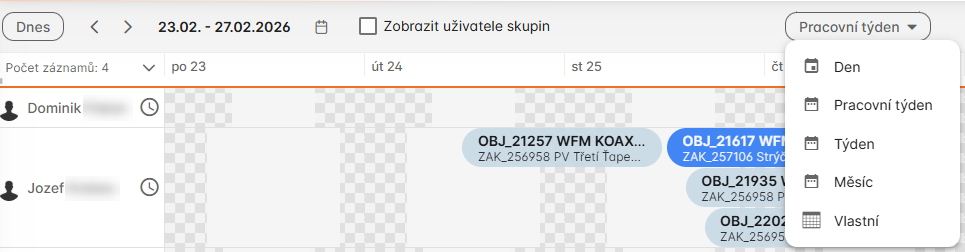
This interface allows selecting view options such as day, work week, month, and custom views.
Custom dispatcher view setup:
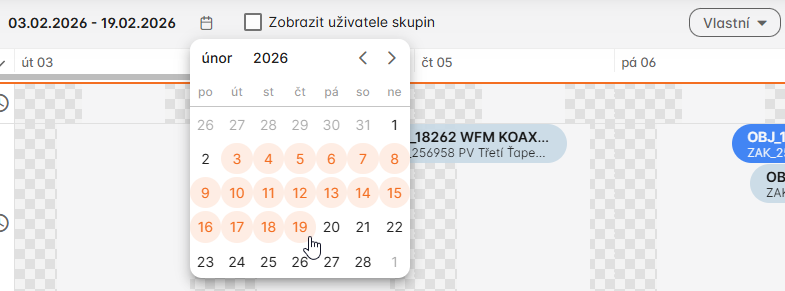
This setup enables selecting a custom view range by choosing start and end dates from a mini calendar.
Dispatcher map view with plan visualization:
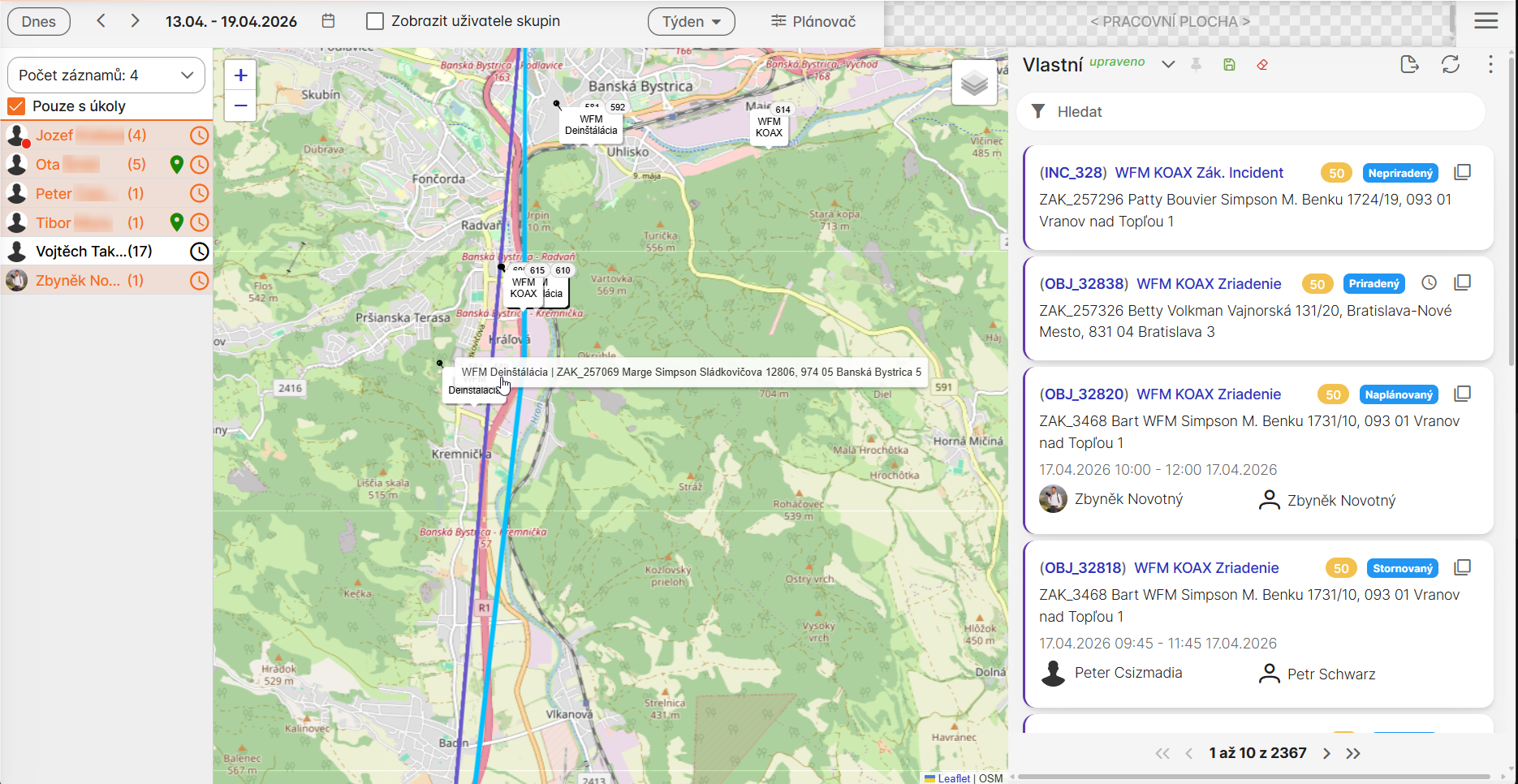
The map displays technician locations, routes, task sites, and planned paths. Layers can show real-time GPS data, traffic conditions, unscheduled tasks, and outages. Interactive elements allow clicking on tasks for details, routing optimization, and manual pinning of tasks to specific locations or times.
7. Collision Resolution and Dry Run
Typical interventions:
- extend working hours,
- change selected task assumptions,
- pin selected tasks to resource/time,
- temporarily exclude resources from automatic planning,
- manually create or adjust part of daily plan.
Recommended practice:
- copy active planner to dry-run mode,
- test changes and inspect side effects,
- apply selected changes to master planner.
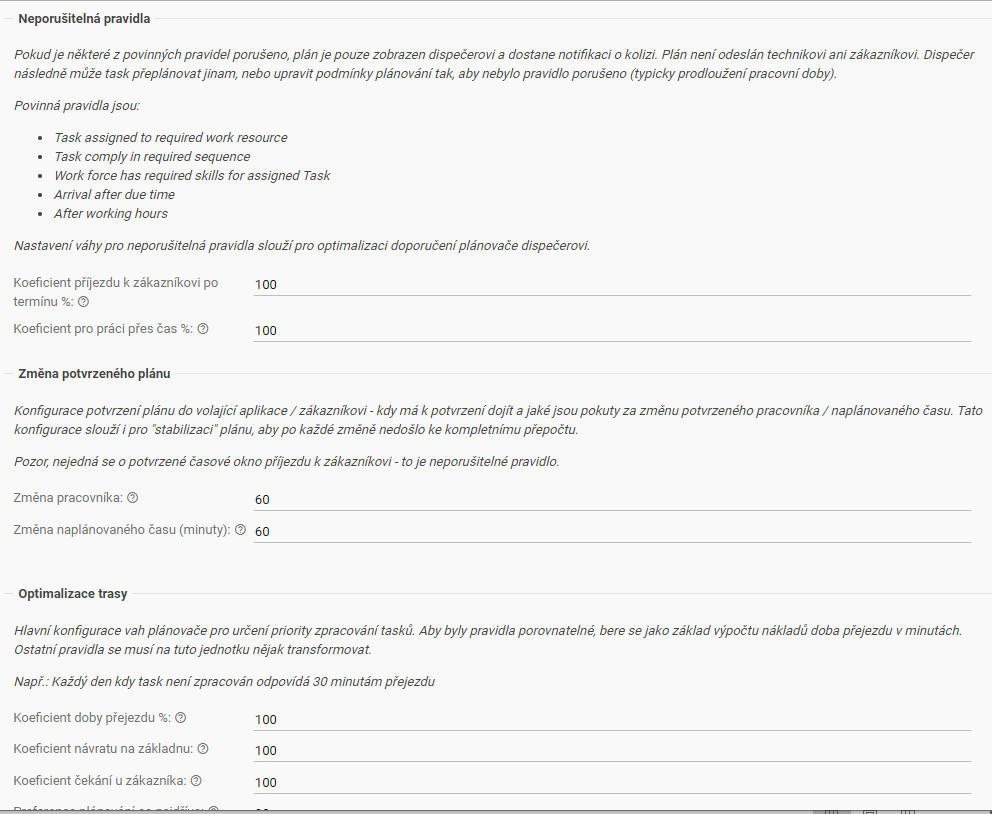
Planner settings and mode management:
8. Governance Notes
- treat manual dispatcher pinning as controlled exception,
- log operational overrides for post-analysis,
- keep clear rules for when to switch planner mode,
- align appointment, scheduler, and dispatcher policies.